In this tutorial we are going to download and install the Arduino IDE in a very simple way and completely free of charge, because yes, the Arduino IDE is free software.
Table of contents
Before anything else, it is worth explaining what the IDE actually is.
If you have any questions or run into any problem, leave a comment and we will reply with a solution as soon as possible.
Below you can see all the steps you need to follow to install it properly:
STEP 1: Go to the Official Arduino Website
The first thing we need to do is go to the software section on the official Arduino website.
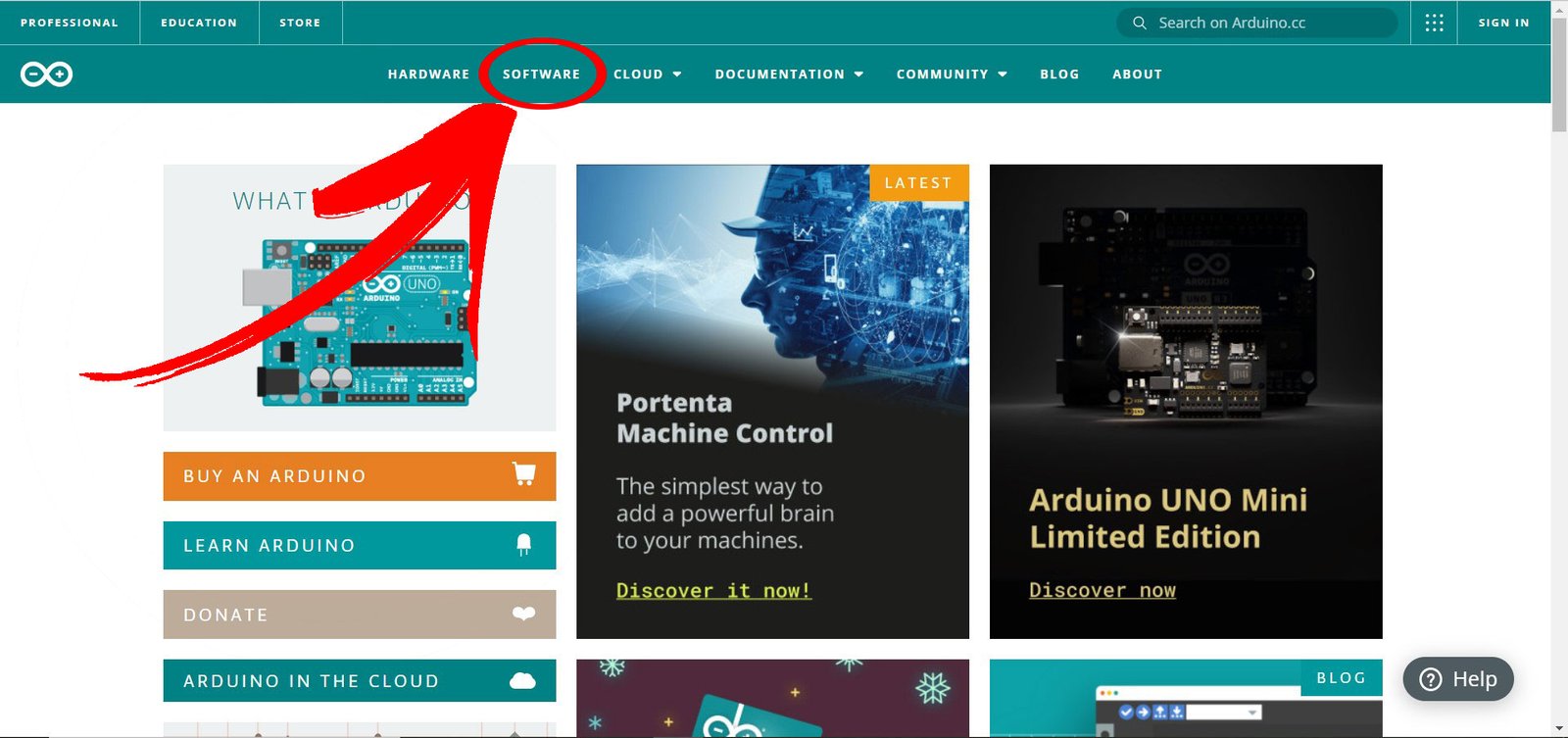
Here is the direct link: https://www.arduino.cc/en/software
STEP 2: Choose the Right Version for Your Operating System
Once you are on the software page, you will see the latest available version of the Arduino IDE. In the source tutorial it was version 1.8.16, but this may change depending on when you read this. Do not worry if the version shown is newer.
On the same page, the different download options are shown according to your operating system.
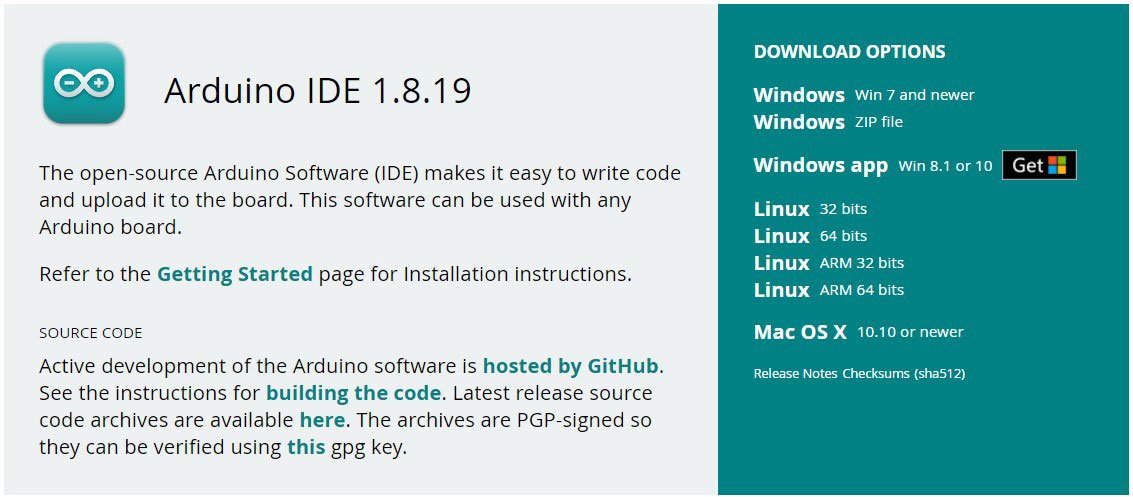
You need to click the version that matches your computer.
To make sure you choose the correct one, I recommend checking which version of Windows, Mac or Linux you have installed and whether your system is 32-bit or 64-bit. Here are two helpful references for that:
- Check which operating system version you have installed: support.microsoft.com
- Check whether your computer is 32-bit or 64-bit: support.microsoft.com
STEP 3: Donate to Arduino (Optional)
Once you click the option that best fits your computer, a new window will open.
On this screen, Arduino gives you the option to make a small donation, but it is entirely optional. If you do not want to donate, click the corresponding button to continue without contributing.

Once you click there, the download will begin.
STEP 4: Install the Arduino IDE on Your Computer
Once the file has been downloaded, right-click it and select Run as administrator.
The next step is to accept the Arduino licence, so click I agree in the window that appears.
Another window will then open with the installation options. Click Next to continue.
Finally, another window will let you choose where to install the program. It is usually best to leave the default path. Click Install and the program will start installing. After that, you just need to wait a few minutes.
Windows may open several prompts asking whether you want to install different components. In each case, click Install.
Once the installation process finishes, you can close the window by clicking Close.
STEP 5: Open the Arduino IDE
If everything went well, the application should now appear on your desktop. Double-click it and accept the message that appears by clicking Allow access.
After that, the Arduino IDE will open and you can start programming with it.
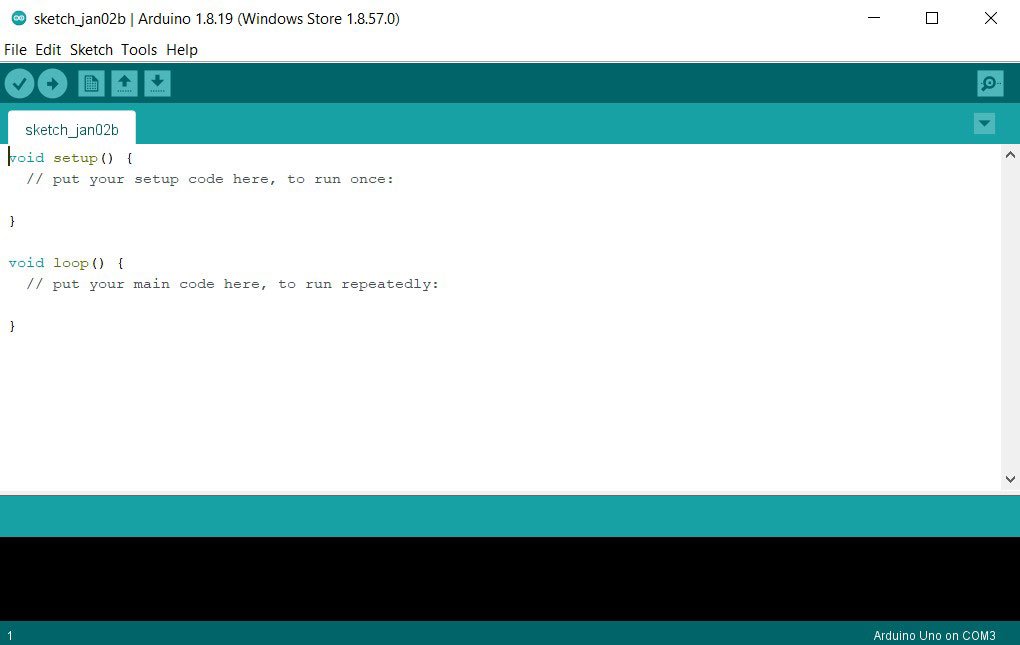
If you have any questions, feel free to leave them in the comments on this page and we will answer as soon as possible.