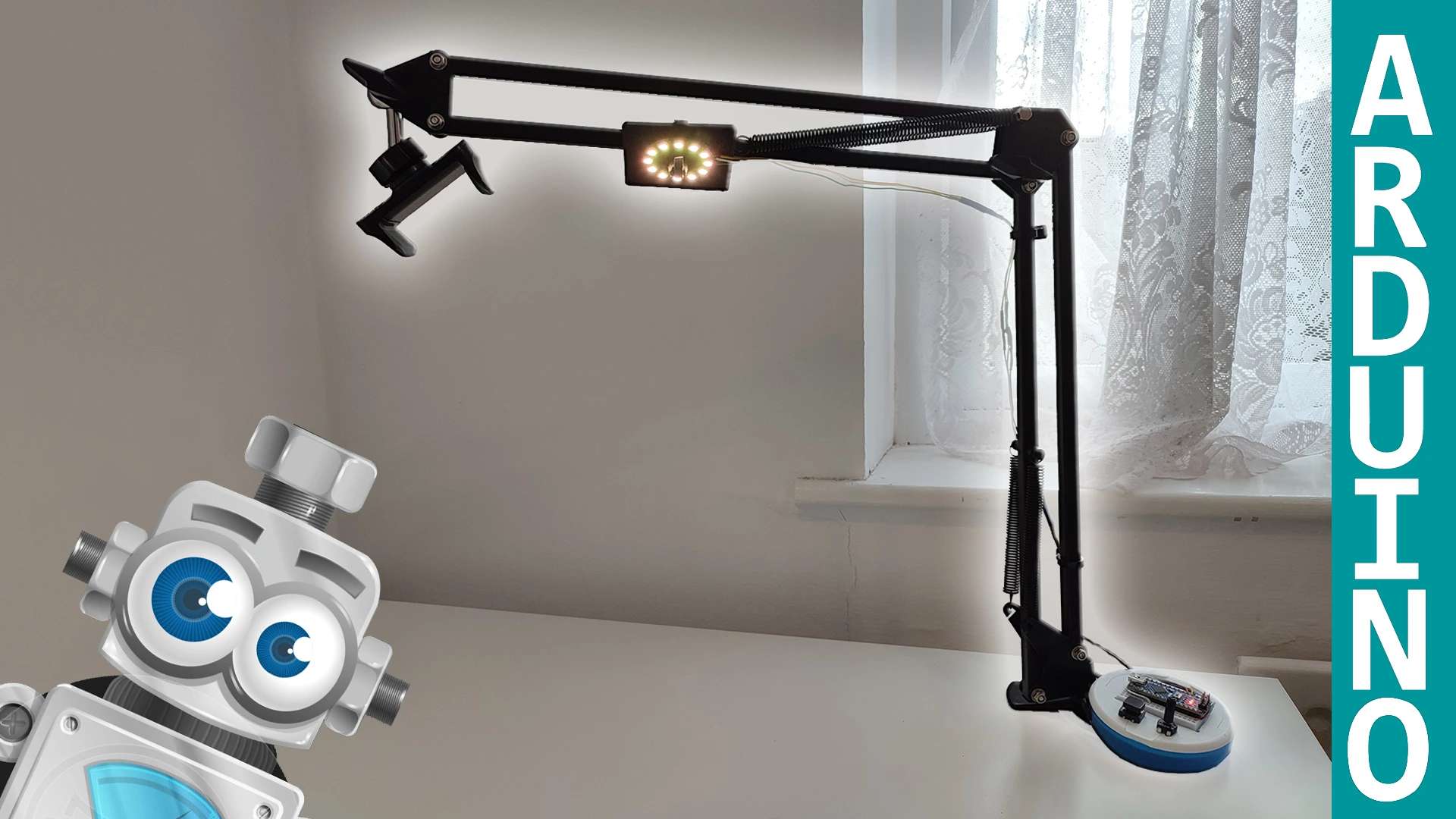
In this project, we are going to build a night lamp, or a study desk lamp, with Arduino. On this page you will find all the resources needed to make it yourself, including the code, the wiring diagram and the materials list. If you are interested in building a homemade lamp, this tutorial will walk you through it.
Table of contents
Step-by-step project explanation
This project consists of a lamp that can be used both as a night light and as a desk lamp for studying. It is built entirely with Arduino and with generic parts that usually come in most beginner Arduino kits.
Its operation is based on a button that lets us change the color temperature of the light, from warmer to cooler, and a potentiometer that lets us adjust the brightness of the LEDs.
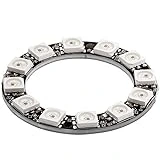
The project also includes a switch that cuts power to the entire build. Power comes from a 5V 2A phone charger, which is more than enough for the 12 RGB LEDs in the LED ring. Each RGB LED can consume about 20 mA per colour, so the total stays well within what a 5V 2A charger can supply.
Materials used to build the lamp
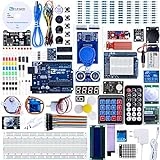
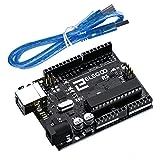
Below you can see the different materials used in this Arduino project together with a brief description of each one. If you want to build it and are missing any component, just click the purchase link.
As an Amazon Associate, RobotUNO earns from qualifying purchases.
WE DEVELOP YOUR IDEA
Need help with a project?

- Prototyping and MVPs
- Arduino and ESP32
- PCB design
- 3D part design
- Bluetooth connectivity
- Feasibility study
- Cost optimization
- Technical consulting
- Internet of Things
- Patent supbyt
Step-by-step project video
If you want a much more detailed walkthrough of how to build this project from start to finish, including a code explanation, the video below covers everything in a more visual and easier-to-follow way. And remember, if you enjoy this kind of content, do not forget to subscribe.
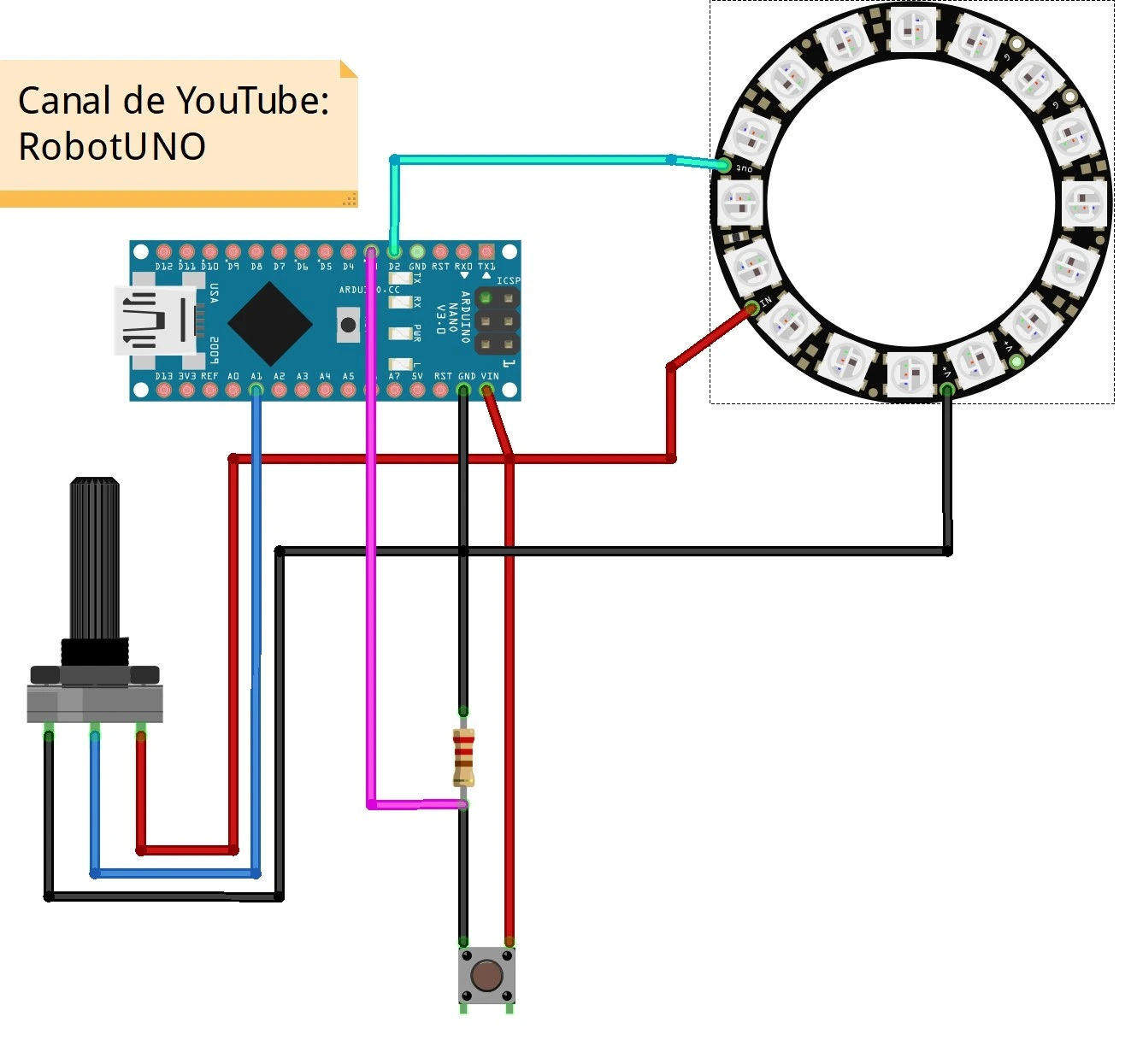
Arduino wiring diagram
One of the most common mistakes when building Arduino projects from the internet is wiring something incorrectly, which stops the project from working. That is why this tutorial includes a very clear wiring diagram to help you make the connections properly.
All these connections were taken into account when the project was programmed, so they should not cause any issues. If you do run into an error, leave a comment on the YouTube video or on this webpage and we will try to help you solve it.
Arduino code for the lamp
Below you can find the code developed specifically for this project. The pins used in the code are the same ones shown in the wiring diagram above.
If you want a more detailed explanation of the different parts of the code used to program this lamp and how it works, I recommend watching the video linked above.
If you have questions about how to use or install the Arduino development environment, here is a link to how to download the Arduino IDE
//Canal de YouTube -> RobotUNO
//Proyecto -> Lampara casera

#include <Adafruit_NeoPixel.h>
Adafruit_NeoPixel lampara  = Adafruit_NeoPixel(12 , 2 , NEO_GRB + NEO_KHZ800); //(nºleds, pin din, NEO_GRB + NEO_KHZ400);

int contador=0, R=0, G=0, B=0;

void setup() {
  Serial.begin(9600);

  pinMode(A1,INPUT);
  pinMode(3,INPUT);

  lampara.begin();
  lampara.show();

}

void loop() {

  int potenciometro = analogRead(A1);
  int boton = digitalRead(3);

  Serial.println("potenciometro = ");
  Serial.print(potenciometro);
  Serial.println("\n");

  Serial.println("boton = ");
  Serial.print(boton);
  Serial.println("\n");

  //BRILLO
  int luz=0.249266*potenciometro;
  luz=round(luz);
  lampara.setBrightness(luz);

  //COLOR
  if (boton==1){
    contador=contador+1;

    if (contador==1){ //Nivel luz 1 (1000 Kº)
      R=255;
      G=56;
      B=0;
    }
    else if (contador==2){ //Nivel luz 2 (1500 Kº)
      R=255;
      G=109;
      B=0;
    }
    else if (contador==3){ //Nivel luz 3 (2000 Kº)
      R=255;
      G=138;
      B=18;
    }
    else if (contador==4){ //Nivel luz 4 (2500 Kº)
      R=255;
      G=161;
      B=72;
    }
    else if (contador==5){ //Nivel luz 5 (3000 Kº)
      R=255;
      G=180;
      B=107;
    }
    else if (contador==6){ //Nivel luz 6 (3500 Kº)
      R=255;
      G=196;
      B=137;
    }
    else if (contador==7){ //Nivel luz 7 (5000 Kº)
      R=255;
      G=228;
      B=206;
    }
    else { //Lo apaga todo
      R=0;
      G=0;
      B=0;

      contador=0;
    }

   delay(500);
  }

  lampara.setPixelColor(0,R,G,B);
  lampara.setPixelColor(1,R,G,B);
  lampara.setPixelColor(2,R,G,B);
  lampara.setPixelColor(3,R,G,B);
  lampara.setPixelColor(4,R,G,B);
  lampara.setPixelColor(5,R,G,B);
  lampara.setPixelColor(6,R,G,B);
  lampara.setPixelColor(7,R,G,B);
  lampara.setPixelColor(8,R,G,B);
  lampara.setPixelColor(9,R,G,B);
  lampara.setPixelColor(10,R,G,B);
  lampara.setPixelColor(11,R,G,B);
  lampara.show();

  delay(100);
}
Leave me a comment if you liked it!