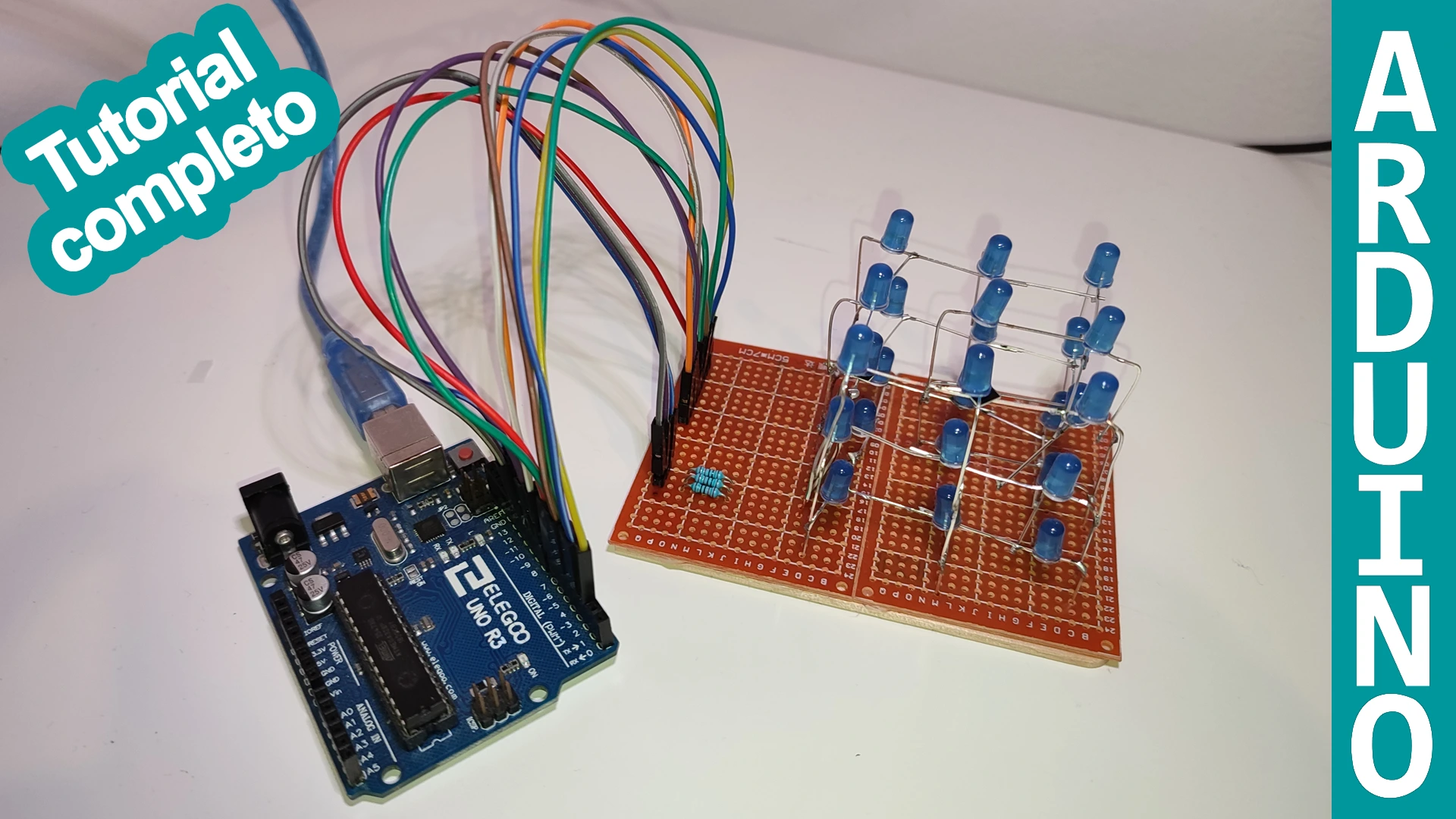
In this project we are going to build a 3x3x3 LED cube. On this page you will find all the resources needed to make it, including the code, the wiring diagram and the materials list. So if you are interested in building your own 3x3x3 LED cube, stay on this page because you will find all the information you need to assemble it and understand how it works.
Table of contents
Materials used in the 3x3x3 cube
Below you can find the materials used to build this Arduino LED cube together with a brief description of each one.
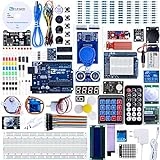
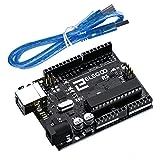
If you want to build the project yourself, you can click the images to visit a website where those materials are available.
Arduino UNO board: It is the brain of the project and controls all of its processes through the code you will find below.
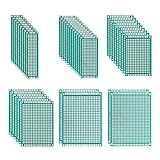
Prototype board: A board with holes where components can be soldered very easily.
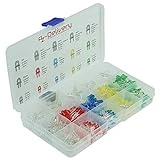
LEDs: They will be used to light and build the LED cube.
Components needed to build an Arduino LED cube
Below you can find the materials used to build this 3x3x3 cube. The list is also useful if you want to source everything before starting the project.
As an Amazon Associate, RobotUNO earns from qualifying purchases.
Step-by-step explanation for building the Arduino LED cube
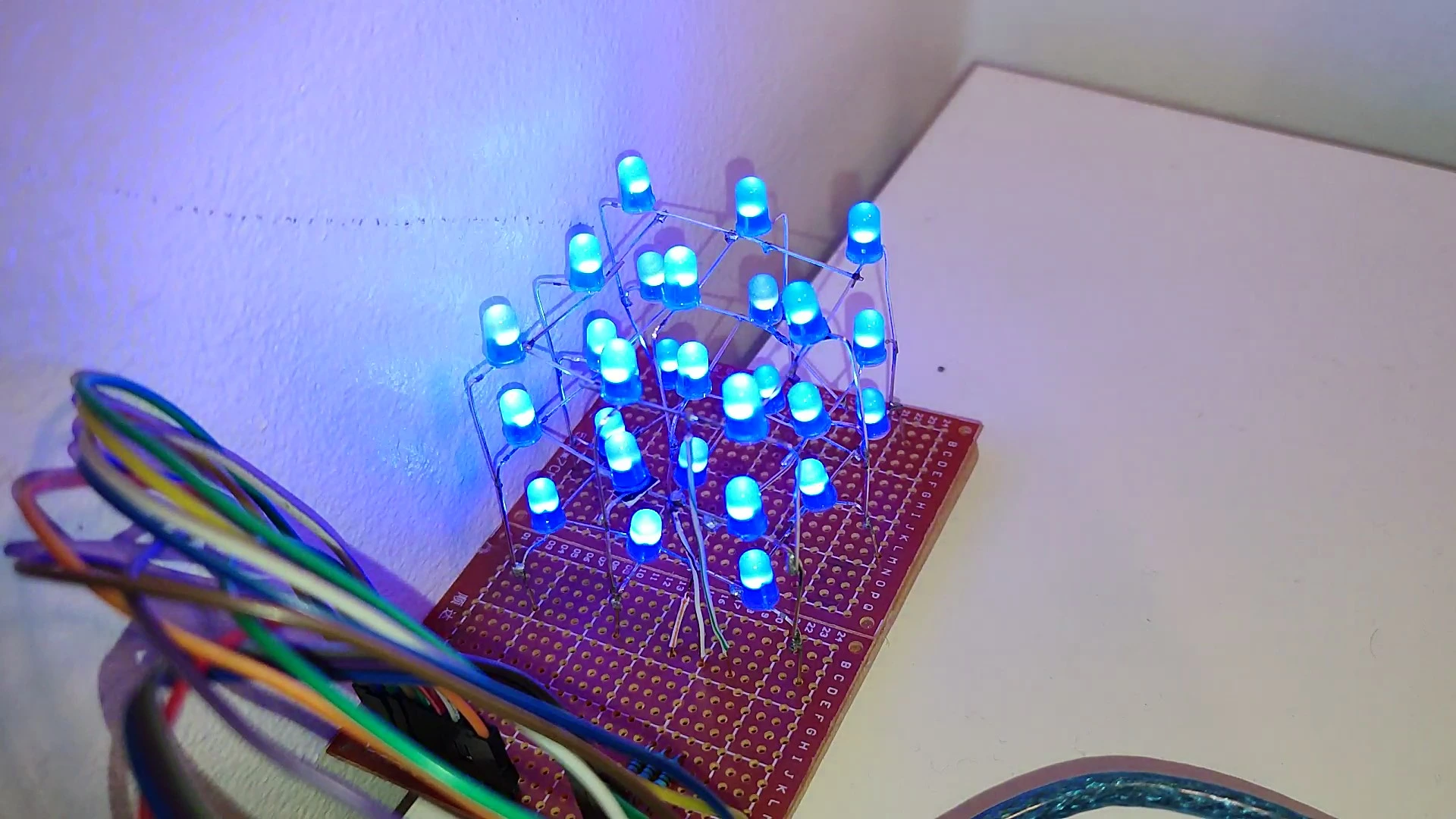
This project consists of a cube made from coloured LEDs. In total, 27 LEDs are used to create a cubic structure with 3 LEDs on each side.
This is a very scalable project. You can build 4x4x4, 5x5x5 or even much larger cubes. However, those bigger versions require more practice when it comes to soldering and assembling electronics projects, so it is best to start with a cube of this size. That will help you understand how it works while improving your soldering skills and your Arduino programming. On top of that, the 3x3x3 cube has the following advantages:
- Low power consumption, so you do not have to worry about current draw damaging your Arduino.
- No complex electronic components are required.
- The LED colours do not matter for this project, so feel free to choose the ones you like most, or simply use the ones you already have at home.
- You can also combine LEDs of different colours for a more colourful result.
There is no need to worry about the current going through each Arduino pin. Even though LEDs can work at a maximum current of 20 mA, in practice 2 mA to 5 mA is enough to light them up. Since each Arduino pin can handle around 20 mA to 30 mA, there is no problem here. The steps to assemble this project are the following:
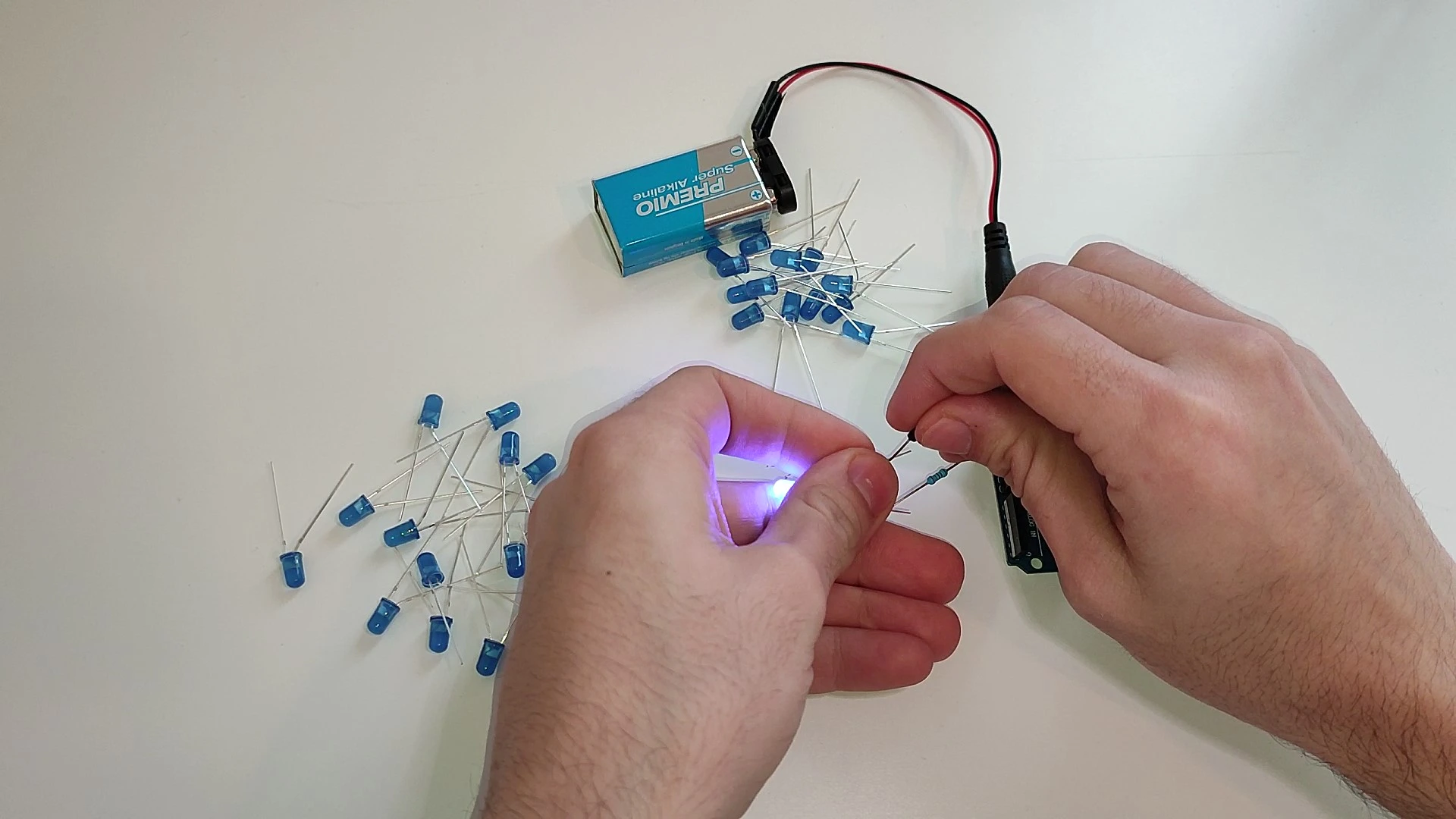
Step 1: Check that every LED works
Even if it seems irrelevant, this is one of the most important steps. You do not want to discover that one LED is faulty after everything has already been soldered together. The easiest way to test them is to connect the positive leg to the Arduino 5 V pin and the negative leg to GND through a 220 ohm resistor.
Step 2: Prepare the template used to align the LEDs
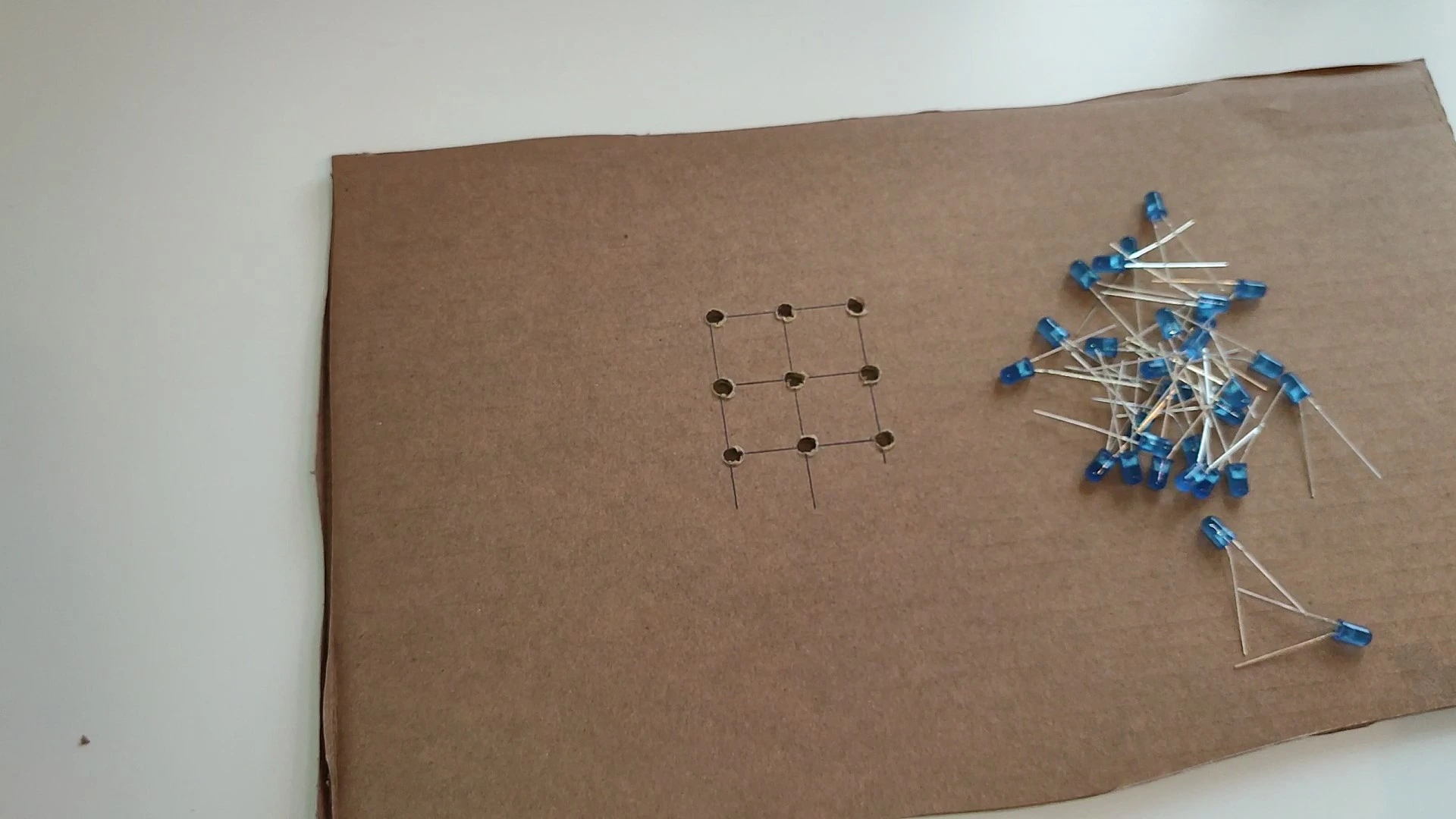
The next step is to prepare the template that we will use to solder the 9-LED layers. To do this, make 9 holes in a piece of cardboard or wood, spaced 2 centimetres apart as shown in the image below. The hole size can vary depending on the LEDs you are using, but they will usually be 3 mm or 5 mm in diameter.
Step 3: Place the LEDs on the template and solder them
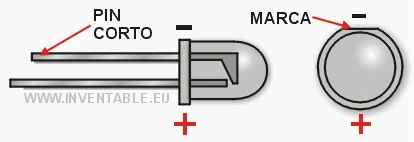
Once the template is ready, you can start placing the LEDs on it. At this stage it is very important to identify the positive and negative leg of every LED. There are two common ways to do that. The first is that the negative leg is shorter, which makes it easy to identify. If both legs are the same length, use the second method: look for the small flat mark on the LED body, which indicates the negative side. The image below shows this clearly.
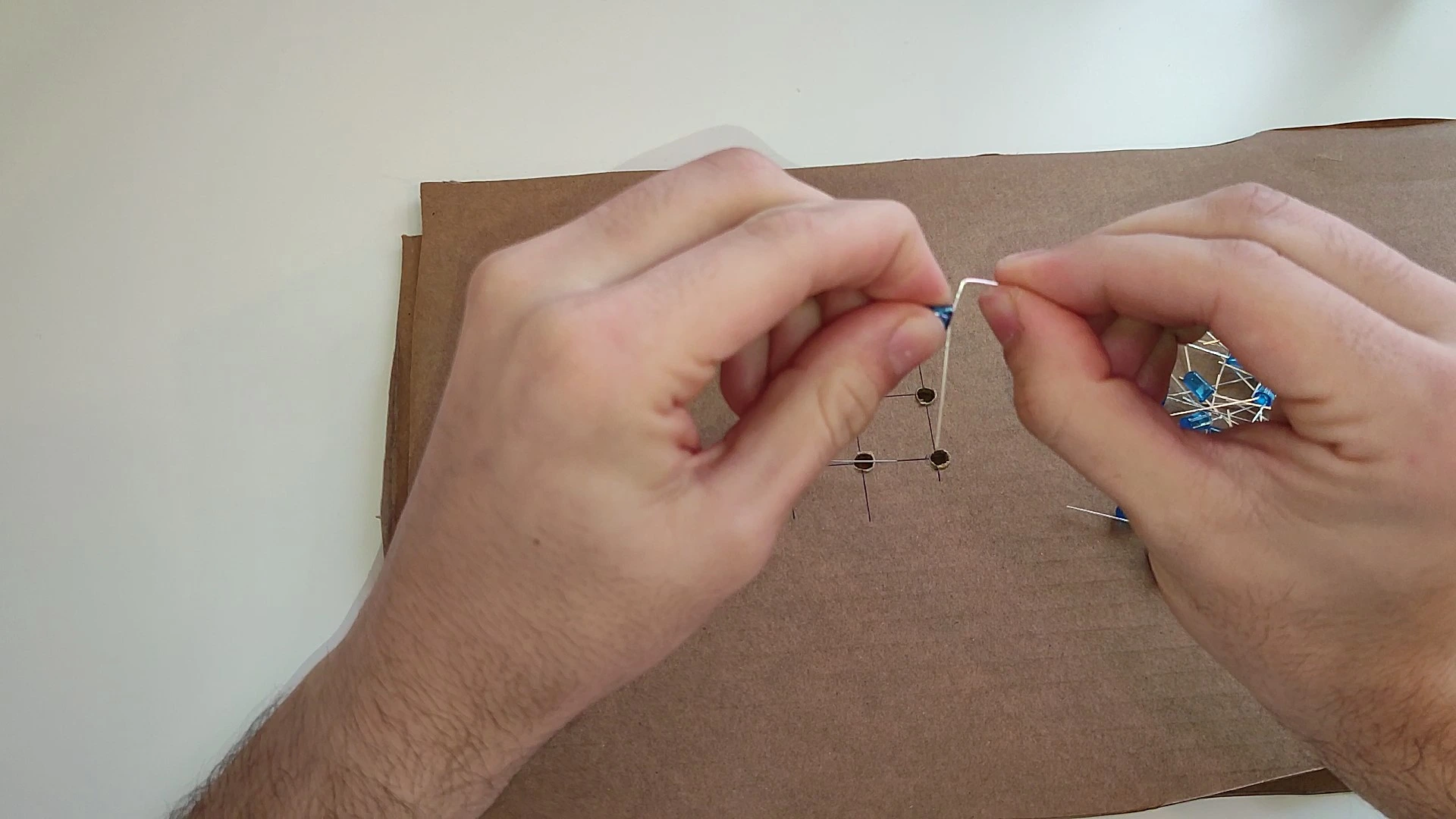
Once that is clear, you can start placing the LEDs. Bend the negative leg to a 90-degree angle relative to the LED, while the positive leg should be bent into an L shape and left vertical, as shown in the image.
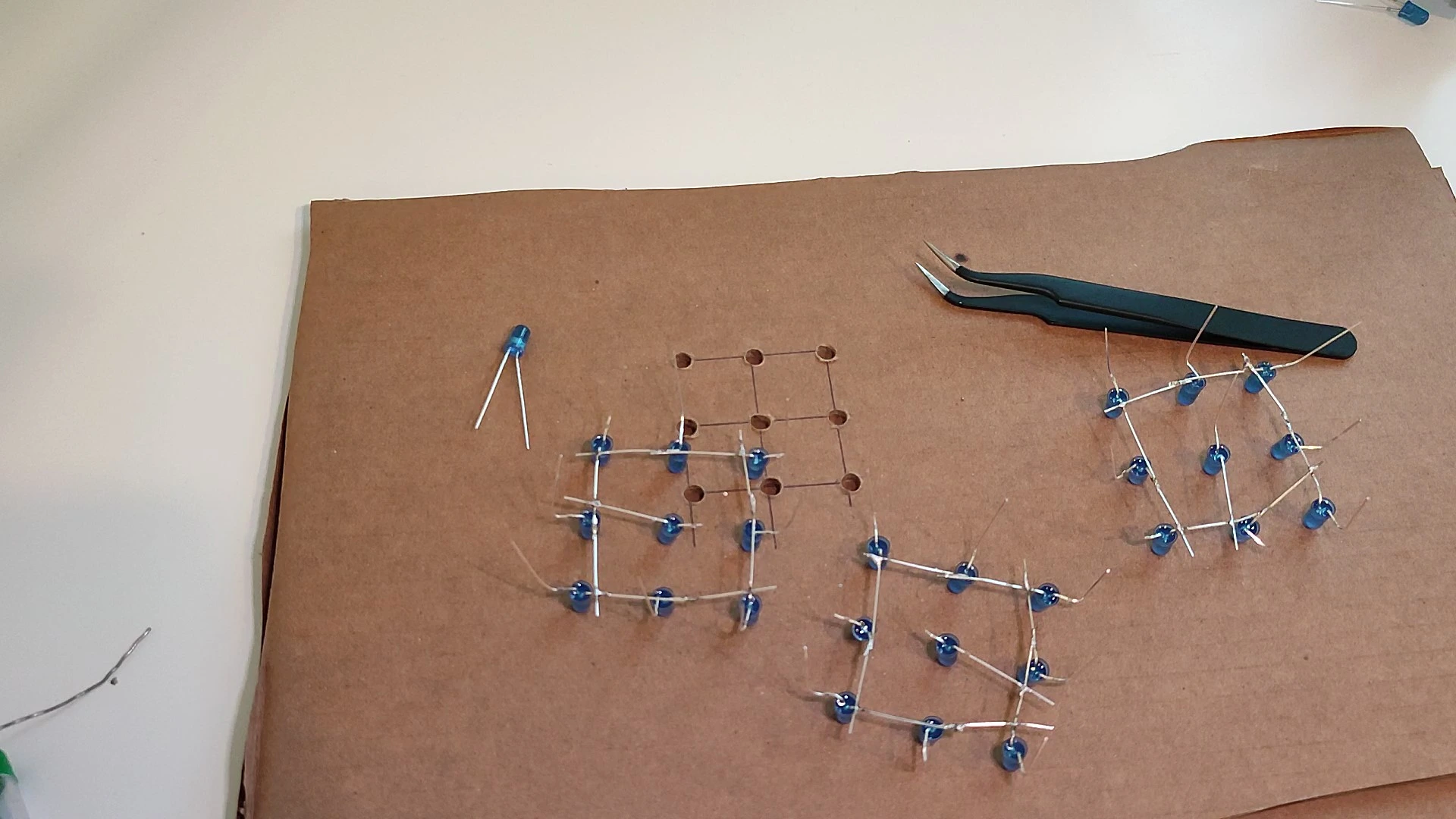
Repeat this process for every LED placed on the template. That way, within each layer all the negative legs will touch each other while the positive legs will point upward. You need to do this 3 times, once for each layer. Be careful: all 3 layers must be exactly the same, meaning every positive leg must face upward in the same orientation. This makes soldering the layers together much easier.
Step 4: Solder the 3 layers of the cube together
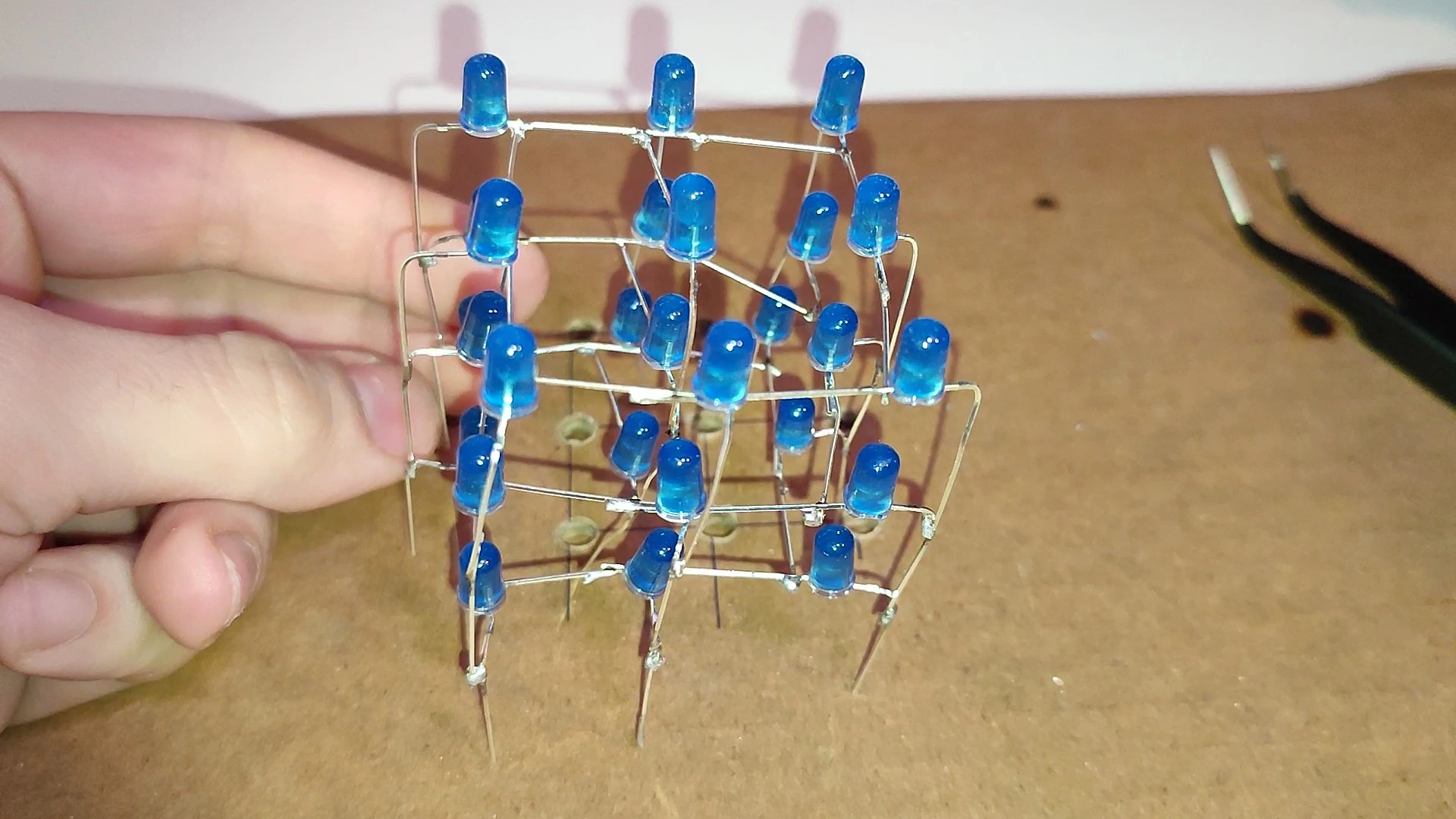
Once the 3 layers are ready, we can start soldering them together. We will solder every vertical pin so that all the layers are connected through the negative legs, while the vertical rows are linked through the positive pins. That way, through programming, we can decide which LED turns on or off at any moment. After soldering the 3 layers one above the other, the result should look like this:
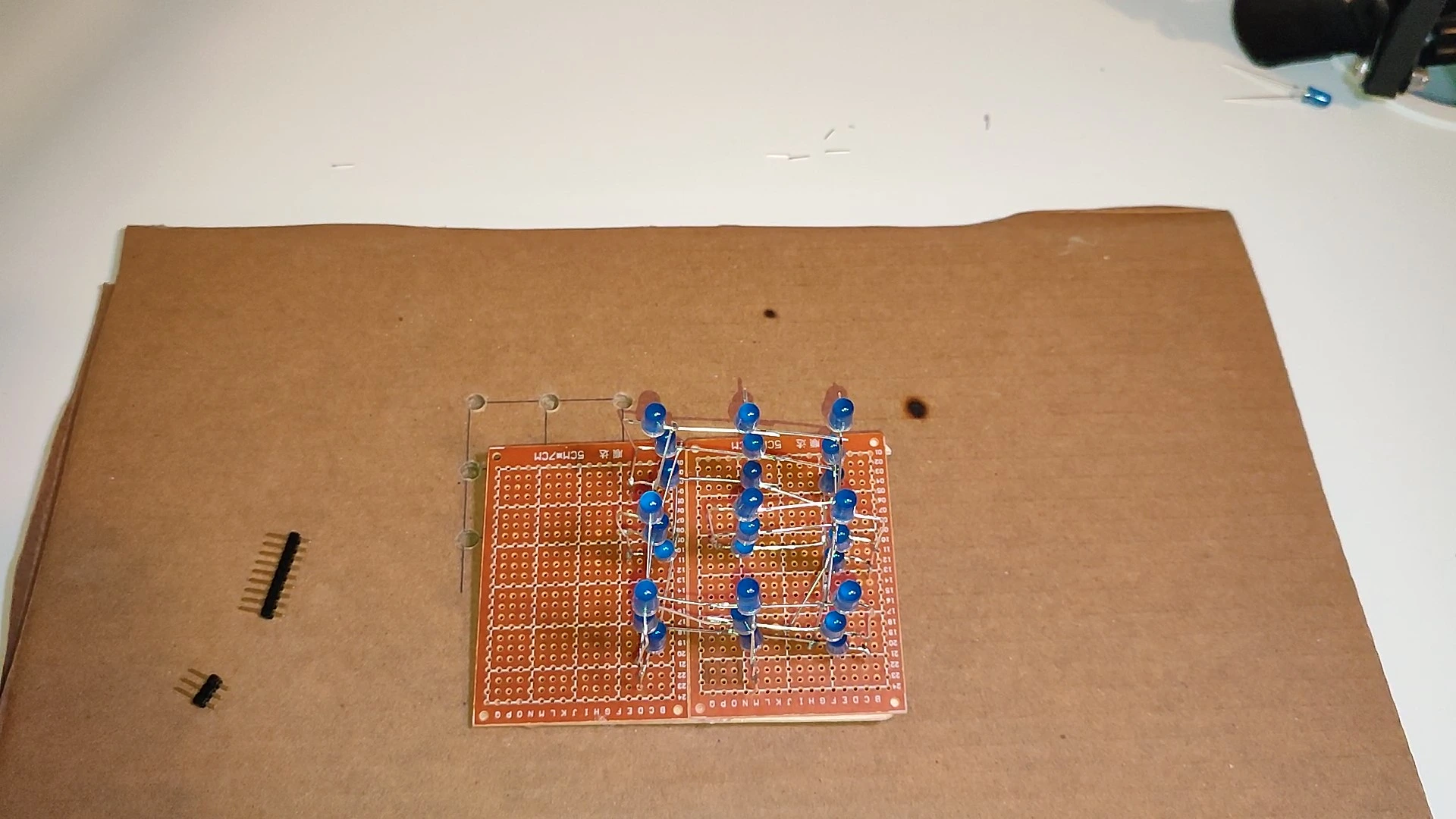
Step 5: Place the LED cube on the prototype board
At this stage, place the pre-soldered LED cube on the prototype board and solder the 9 pins coming out from underneath, as shown in the image:
Step 6: Add the resistors, header pins and layer connections
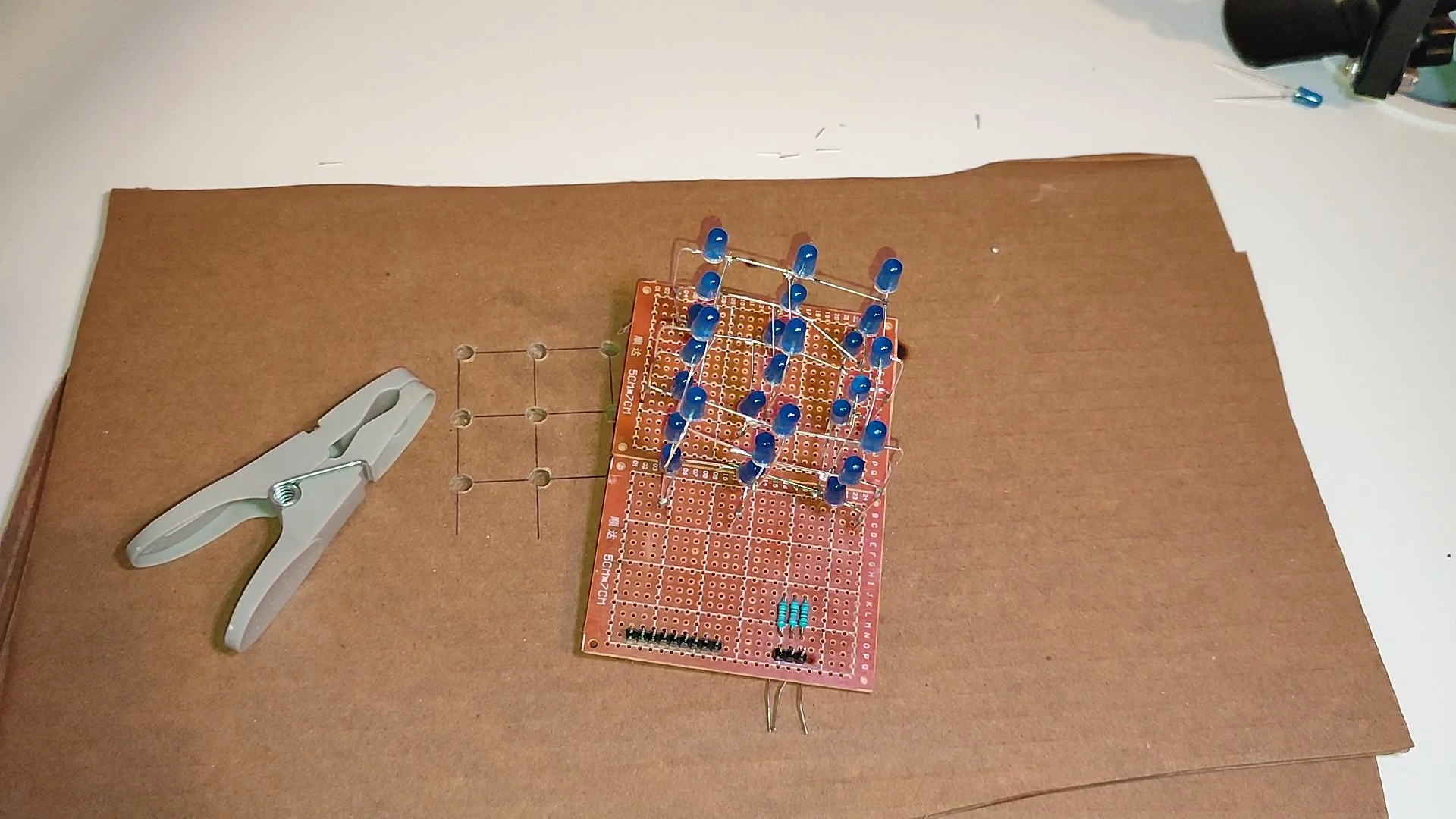
After that, you can add the header pins that will connect the cube to the Arduino Uno board. This step is not mandatory, but it makes everything much easier in the future. In total, we will use 9 pins for the positive rows and 3 pins for the negative layers. You also need to connect 3 resistors of 220 ohms just before the 3 pins that will correspond to the negative layers. On top of that, run one wire from each negative layer of the LED cube and solder it on the underside of the prototype board. The result should look similar to the image below:
Step 7: Solder all LED connections
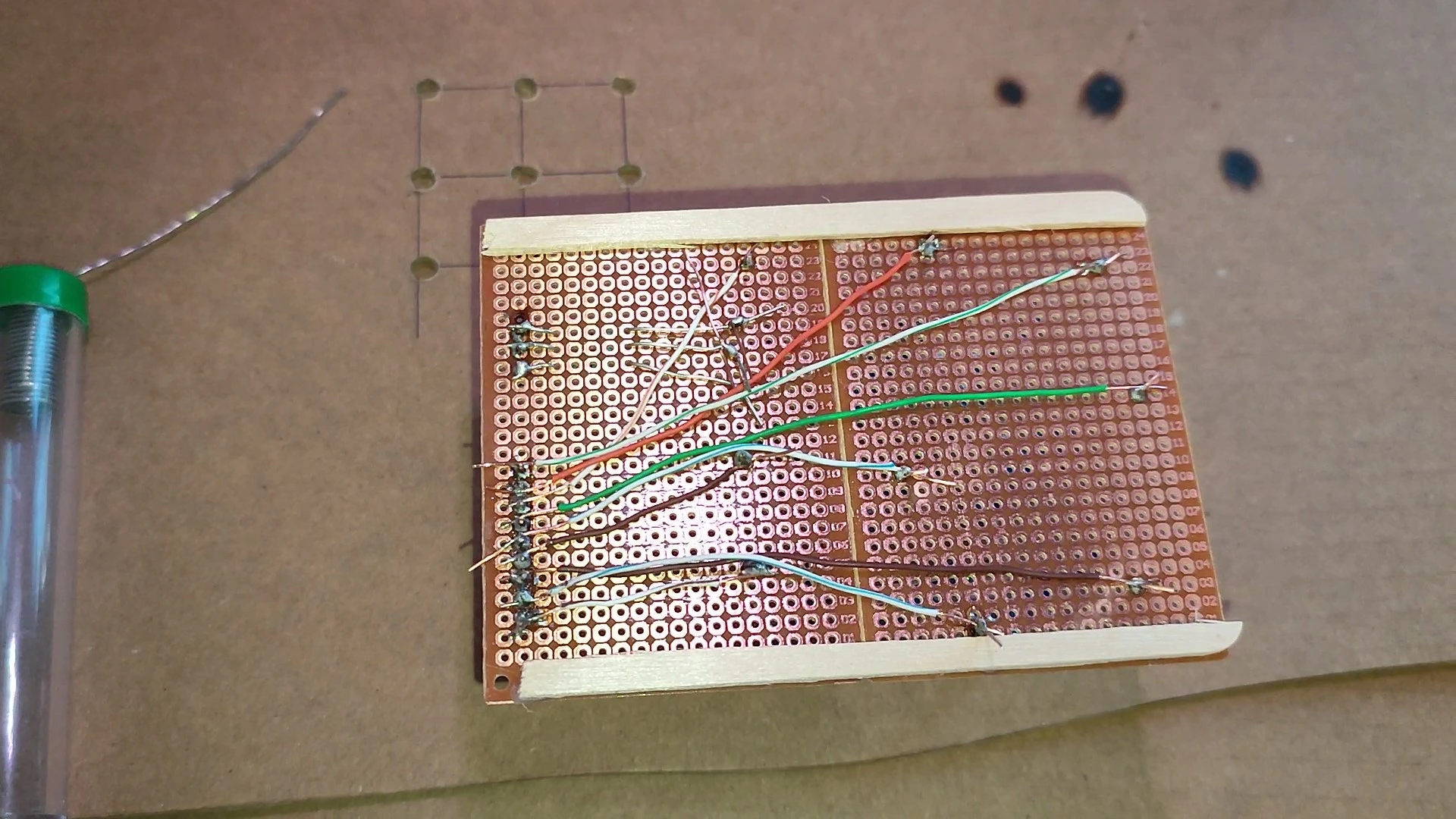
In this step, solder all the connections on the underside of the board. Solder the 9 pins from the positive rows of the LED cube to the 9 male pins placed on the prototype board. You also need to solder the 3 pins for the negative layers to the 220-ohm resistors added in the previous step. The other end of those resistors should be soldered to the male pins placed on the prototype board. This is what the finished project should look like:
Step 8: Connect the LED cube to Arduino
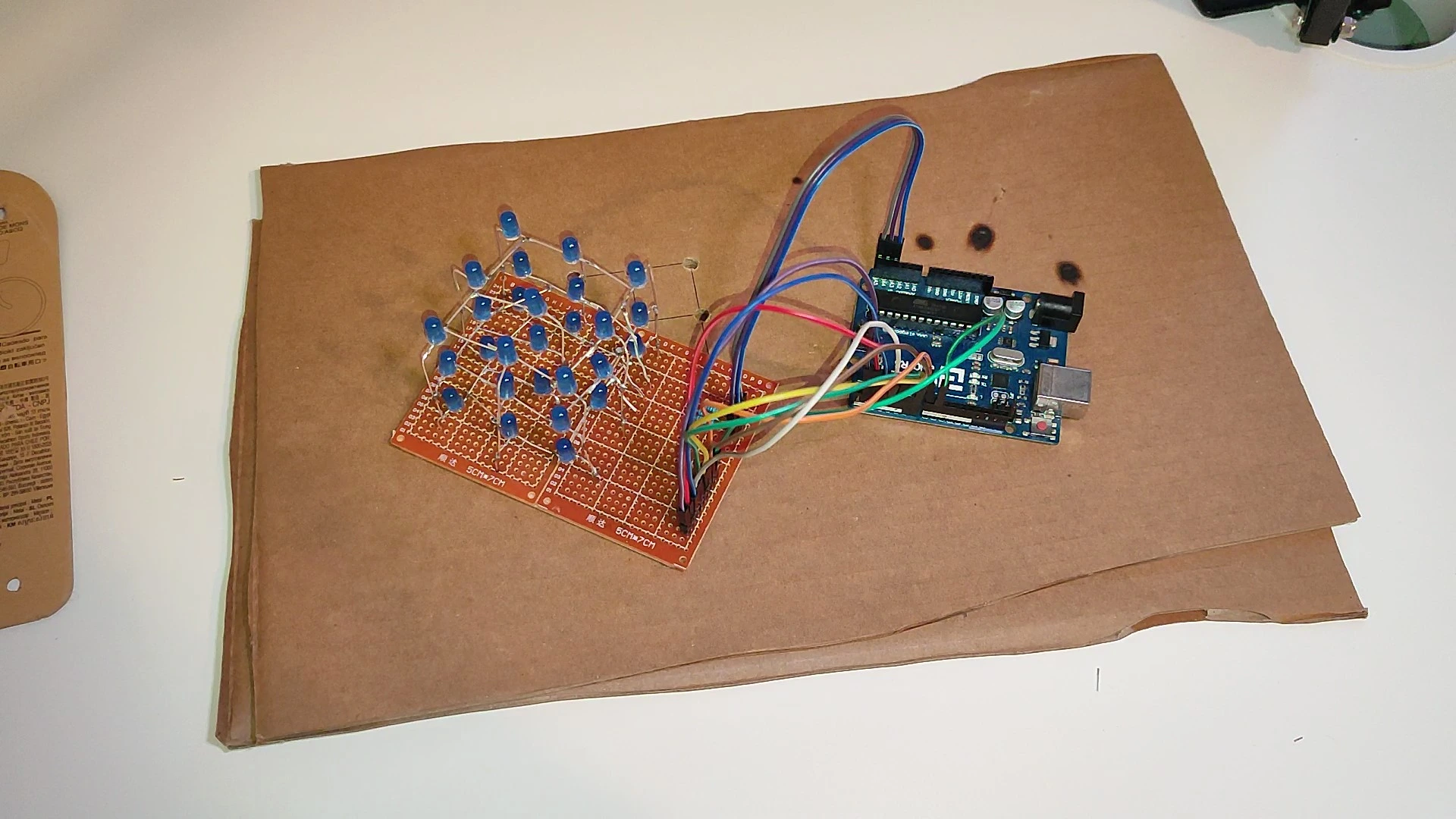
At this point you need to connect the 9 positive pins of the LED cube to Arduino pins 3 to 10, both included, and the 3 pins for the negative layers to Arduino pins 11 to 13, both included. That completes all the connections between the LED cube and the Arduino Uno board.
Step 9: Upload the code to Arduino
This is the final step to complete the project. All we need to do is connect the Arduino board to the computer through a USB port. Once that is done, it is very important to select in Arduino IDE (download link here) both the USB port where the board is connected and the board model you are using, in our case an Arduino Uno. The last step is to upload the code shown below to the Arduino board and, if everything is correct, the LED cube should start working.
WE DEVELOP YOUR IDEA
Need help with a project?

- Prototyping and MVPs
- Arduino and ESP32
- PCB design
- 3D part design
- Bluetooth connectivity
- Feasibility study
- Cost optimization
- Technical consulting
- Internet of Things
- Patent support
Step-by-step video for the project
If you understand things better when you can watch them, here is the full video version of the project. It lets you follow every step much more quickly and easily. If you have any questions or one of the steps is not clear, leave a comment on the YouTube channel or on this website and I will help you.
Arduino wiring diagram for a 3x3x3 LED cube
To avoid possible mistakes while wiring the project, here is the wiring diagram for a 3x3x3 LED cube.
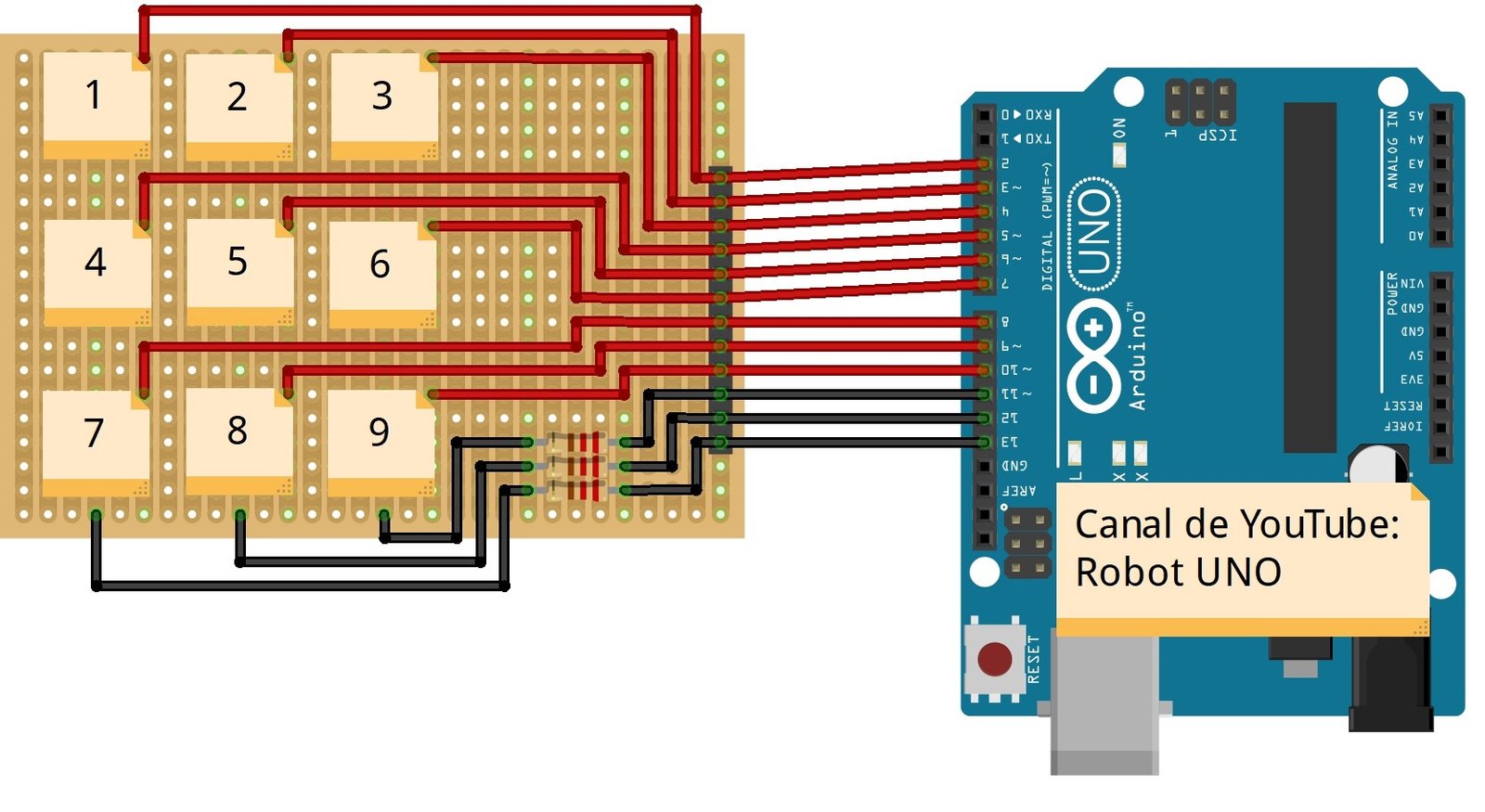
The red wires show the connections for the positive rows of the LED cube. The black wires show the connections for the 3 negative layers. The resistors in the diagram are 220 ohms, and the Arduino board used is an Arduino UNO, as mentioned earlier.
Arduino code for the project
Here is the code used in this project. Further down you will find a more detailed explanation of how it works and the different parts it is divided into. Remember that this code is designed for the pin configuration shown above, so if you want to use different pins you will need to adjust some parts of it. Finally, for the code to work correctly, select the "Arduino UNO" board in the Arduino IDE application (here is a link to download it for free if you do not have it yet) and, once the Arduino board is connected to your computer, select the COM port it is using at the top of the interface.
//Canal YouTube -> RobotUNO //Proyecto: Cubo led 3x3x3
void setup() {
    pinMode(2,OUTPUT); //Pines positivos
    pinMode(3,OUTPUT);
    pinMode(4,OUTPUT);
    pinMode(5,OUTPUT);
    pinMode(6,OUTPUT);
    pinMode(7,OUTPUT);
    pinMode(8,OUTPUT);
    pinMode(9,OUTPUT);
    pinMode(10,OUTPUT);
    pinMode(11,OUTPUT); //Pines negativos
    pinMode(12,OUTPUT);
    pinMode(13,OUTPUT);
}

void loop() {
//MODO 1: PARPADEO DE LEDS
    digitalWrite(2,HIGH);
    digitalWrite(3,HIGH);
    digitalWrite(4,HIGH);
    digitalWrite(5,HIGH);
    digitalWrite(6,HIGH);
    digitalWrite(7,HIGH);
    digitalWrite(8,HIGH);
    digitalWrite(9,HIGH);
    digitalWrite(10,HIGH);

    for(int i=0;i<10;i++){
        if(i%2==0){ //Enciendo todos los leds
            digitalWrite(11,LOW);
            digitalWrite(12,LOW);
            digitalWrite(13,LOW);
        }
        else{ //Apago todos los leds
            digitalWrite(11,HIGH);
            digitalWrite(12,HIGH);
            digitalWrite(13,HIGH);
       }
    delay(100);
    }
//MODO 2: SE ENCIENDEN UNA POR UNA LAS FILAS
    digitalWrite(2,LOW);
    digitalWrite(3,LOW);
    digitalWrite(4,LOW);
    digitalWrite(5,LOW);
    digitalWrite(6,LOW);
    digitalWrite(7,LOW);
    digitalWrite(8,LOW);
    digitalWrite(9,LOW);
    digitalWrite(10,LOW);
    digitalWrite(11,LOW);
    digitalWrite(12,LOW);
    digitalWrite(13,LOW);
    for(int j=0;j<=1;j++){
        for(int i=2;i<=10;i++){
            digitalWrite(i,HIGH);
            delay(100);
            digitalWrite(i,LOW);
            delay(100);
        }
    }
//MODO 3: SE ENCIENDEN UNA POR UNA LAS CAPAS
    digitalWrite(2,HIGH);
    digitalWrite(3,HIGH);
    digitalWrite(4,HIGH);
    digitalWrite(5,HIGH);
    digitalWrite(6,HIGH);
    digitalWrite(7,HIGH);
    digitalWrite(8,HIGH);
    digitalWrite(9,HIGH);
    digitalWrite(10,HIGH);
    digitalWrite(11,HIGH);
    digitalWrite(12,HIGH);
    digitalWrite(13,HIGH);
    for(int j=0;j<=4;j++){
        for(int i=11;i<=13;i++){
            digitalWrite(i,LOW);
            delay(100);
            digitalWrite(i,HIGH);
        delay(100);
        }
    }
}
Programming a LED cube like this with Arduino is quite simple. You just need to understand that, for an LED to turn on, two things must happen: the positive pole must be positive and the negative pole of the LED must be negative. Once that is clear, you can start programming it. To set an Arduino pin high or low, you can use the following commands:
- Set a pin high -> digitalWrite(pinNumber,HIGH);
- Set a pin low -> digitalWrite(pinNumber,LOW);
With that in mind, you can turn any LED in the cube on or off, because you can set any row high and any layer low, which will light the LED located at that position.
Leave a comment if you liked it!